
My Money – One view of your all Savings and
Investments
Account
How to Access and Use My Money on the HDFC Bank App
A simple guide to help you navigate and make the most of your financial dashboard
Synopsis:
- Managing finances across multiple bank and Equity/ETF accounts can feel overwhelming without a centralised view.
- My Money feature brings all your financial data into one place, making tracking and monitoring easier.
- This HDFC Bank Mobile Banking guide will walk you through how to access the My Money feature, link accounts and understand the dashboard effectively.
Overview
Keeping track of multiple bank accounts, investments and transactions can quickly become complicated. The HDFC Bank simplifies this by offering a unified platform to view all your financial data through My Money. If you are wondering how to use HDFC Bank My Money, this guide will take you through each step.
What You Need Before Getting Started With My Money?
You need an active HDFC Bank Savings Account and access to Mobile Banking. Make sure your mobile number is linked to your account, as it will be used for OTP verification during My Money login.
How to Find My Money Inside HDFC Bank Mobile Banking or SmartWealth App
- Log in to HDFC Bank Mobile Banking or SmartWealth app and navigate through the main menu.
- Tap on My Money (DigiPassBook) in the top left corner of the screen.
- Enter your mobile number and authenticate using OTP.
- A list of bank accounts and investment accounts linked to the mobile number will be displayed.
- Provide consent to link the accounts to My Money.
This is where your consolidated financial data is displayed.
What’s Inside Your Dashboard?
The My Money dashboard is designed to give you a clear and structured view of your finances. It acts as an investment dashboard and transaction tracker combined into one interface. Sections include:
Accounts Overview: View balances across linked bank accounts.
Investments: Track equities, ETFs and deposits in one place.
Transaction Insights: Monitor spending and recent transactions.
Linked Accounts: Access a consolidated financial snapshot.
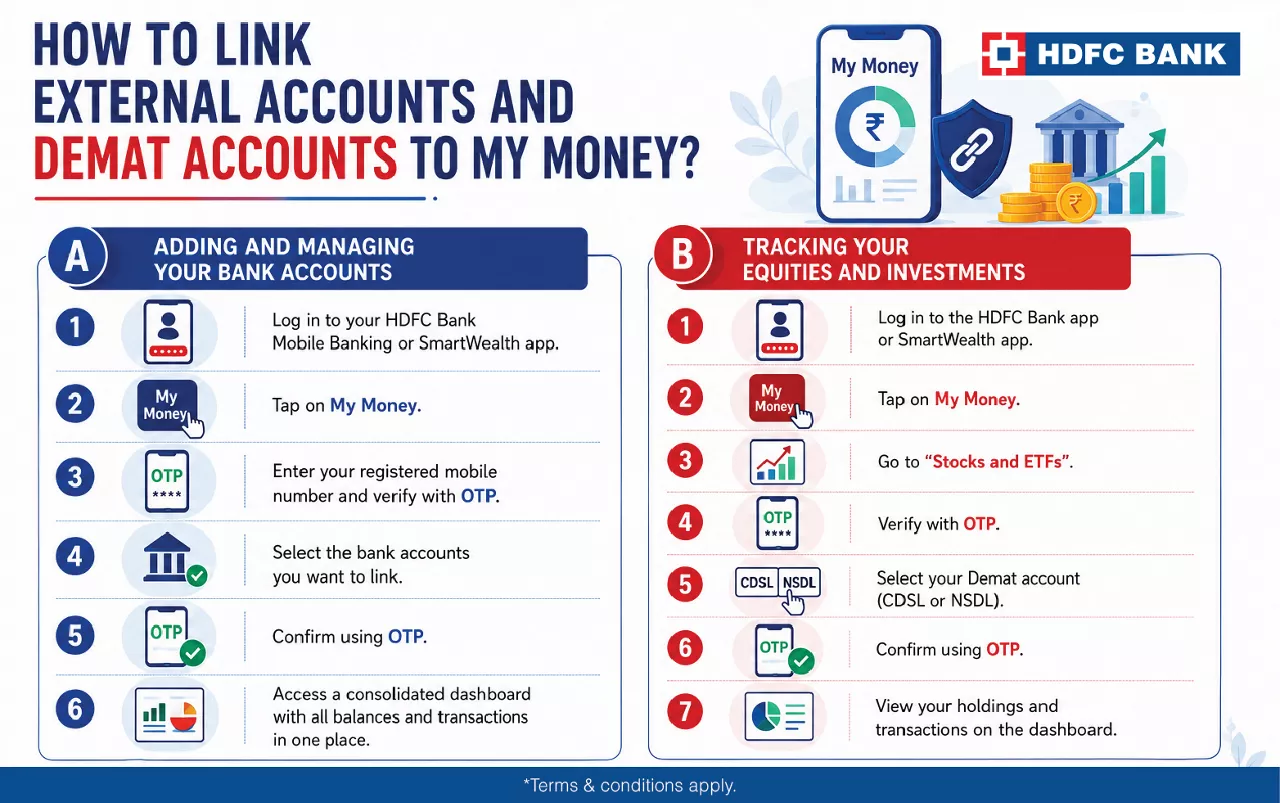
How to Link External Accounts and Demat Accounts to My Money?
A. Adding and Managing Your Bank Accounts
Log in to your HDFC Bank Mobile Banking or SmartWealth app.
Tap on My Money (DigiPassBook).
Enter your registered mobile number and verify with OTP.
Select the bank accounts you want to link.
Confirm using OTP.
Access a consolidated dashboard with all balances and transactions in one place.
B. Tracking Your Equities and Investments
Log in to the HDFC Bank app or SmartWealth app.
Tap on My Money (DigiPassBook).
Go to “Stocks and ETFs”.
Verify with OTP.
Select your Demat account (CDSL or NSDL).
Confirm using OTP.
View your holdings and transactions on the dashboard.
Common Issues When Accessing My Money and How to Fix Them
Issue |
Possible Reason |
What You Can Do |
Account not getting discovered |
Only individual accounts are supported; joint/inactive accounts are not eligible; temporary bank downtime |
Ensure the account is active and individually held; retry after some time; contact support if needed |
Account linked but balance not updated |
Data reflects T-1 (previous working day); temporary delay from bank |
Wait for the next update cycle; log in again after some time |
Consent rejected while linking |
Consent not approved during process; bank-side issue |
Retry linking; ensure you complete the consent flow correctly |
Balance mismatch with bank app |
My Money shows T-1 data; bank app shows real-time balance |
This is normal; balance will auto-update in the next cycle |
Unable to view Demat account |
Mobile number mismatch; issue with depository linkage |
Check mobile number linkage with CDSL/NSDL; retry; contact support if needed |
Final Note
Managing finances becomes easier when everything is available in one place. The My Money simplifies financial tracking by offering a consolidated and user-friendly interface.
Log into your Mobile Banking app today and start exploring My Money for better financial clarity
*Disclaimer: The information provided in this article is generic in nature and for informational purposes only. It is not a substitute for specific advice in your own circumstances. You are recommended to obtain specific professional advice before you take any or refrain from any action. Investments are subject to changes in tax laws. Please contact a professional consultant for an exact calculation of your liabilities.
Help us know you better
Which types of content do you find most valuable on our credit card blog? (Select all that apply)
Which types of content do you find most valuable on our credit card blog? (Select all that apply)
Frequently Asked Questions
You can find it in the main menu under the My Money section within the Mobile Banking app.
Currently, the feature is primarily available through the Mobile Banking app for a seamless experience.
This could be due to connectivity issues, incomplete account linking or the need to refresh or re-authenticate your accounts.


