Auto Loan Summary

Keeping track of your Auto Loan details is important for managing your repayments with ease. You can conveniently access your auto loan summary anytime through WhatsApp using HDFC Bank’s ChatBanking service, allowing you to view key loan information quickly without logging into NetBanking or visiting a branch.

Credit Guarantee Fund Trust For Micro And Small Enterprises CGTMSE

Auto Loan Summary: What It Covers and Why It Matters

An Auto Loan summary provides a snapshot of your loan details, including the sanctioned loan amount, outstanding balance, EMI amount, interest rate, loan tenure, and repayment status. It may also show the next EMI due date and past payment history, helping you stay informed about your loan at a glance.

Reviewing your Auto Loan summary regularly helps you track repayments, avoid missed EMIs, and plan your finances better. It also allows you to verify loan details, identify discrepancies early, and stay updated on your outstanding balance throughout the loan tenure.

An Auto Loan summary typically includes the following key components: 

  • Loan account number 

  • Sanctioned loan amount 

  • Outstanding loan balance 

  • EMI amount and frequency 

  • Interest rate applicable 

  • Loan tenure and remaining tenure 

  • Next EMI due date 

  • Repayment status and recent payment details 

These details give you a clear snapshot of your HDFC Bank Auto Loan and help you track repayments and plan your finances effectively.

Prerequisites to Book a Bank Appointment

Before you schedule your appointment, please ensure you meet the following basic requirements:

  • You must be above 18 years of age
  • You must be a Resident Indian with an active Savings Account
  • Your registered email ID or mobile number should be handy and available for validation

How to View Your Auto Loan Summary via ChatBanking

  • View your auto loan summary instantly on WhatsApp using HDFC Bank’s ChatBanking service. 
      • Save +91 70700 66666 in your contacts as “HDFC Bank”.
      • Open WhatsApp and send “Hi” to the saved number from your registered mobile number.
      • Complete the quick verification process by following the on-screen instructions.
      • From the menu, select “Loan Summary” or type “Auto Loan Summary” in the chat.
      • Choose your auto loan account, if prompted.
      • Your auto loan summary, including outstanding balance and EMI details, will be displayed instantly in the chat.

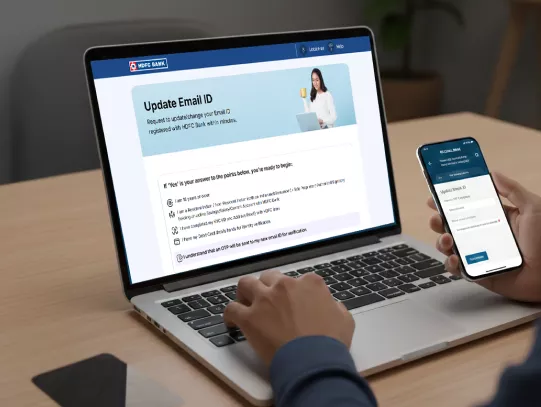
Documents Required to Update Email ID in Your Bank Account

Identity Proof

  • Aadhaar Card
  • PAN Card
  • Passport
  • Driving Licence
  • Voter ID

Customer Request Form

  • Fill and sign the Customer Request Form at the branch to update your registered email ID at the bank branch.

Self-Attested Document Copy

  • Submit a self-attested photocopy of the identity proof along with the request form.

How To Report Unauthorised/Disputed Transactions

Via Online Portal

If you are a victim of online fraud, immediately report the incident to the National Cyber Crime Portal at cybercrime.gov.in or call the national helpline on 1930 for urgent assistance.

Additionally, reports can be filed directly through the online portal at https://cybercrime.gov.in/Webform/Crime_AuthoLogin.aspx or via the main website at www.cybercrime.gov.in

No need for collateral

Via Customer Care

You can contact HDFC Bank’s customer care helpline at 1800 1600 / 1800 2600, which is accessible across India, to block your card or secure your account.

To report a dispute please call us on 1800 202 6161 / 1860 267 6161 (accessible across India).

Customer travelling overseas can reach us on 022-61606160.

Click here to submit Online dispute form.

  • Provide Your 10 registered mobile number

  • Input the OTP

  • Select Product Type (Eg Debit /Credit / Prepaid Card)

  • Enter last 4 digit of the Card No

  • Select Merchant/Beneficiary Name

  • Select Disputed transaction date (last 60 days)

  • Enter the dispute reason and details in the text box

  • Enter Submit

  • Your dispute will be successfully reported.

Click here to Download physical Dispute form.

No need for collateral

Block via NetBanking

How to block your Debit/Credit Card using NetBanking

  • Login to NetBanking using your customer ID & password click here

  • Click on "Card" tab

  • Select "Request" under Credit or Debit Card, whichever applies

  • Select "Credit Card hotlisting" or "Debit Card hotlisting" whichever applies

How to block Prepaid card using Prepaid Card NetBanking

  • Click to select the type of card variant you wish to block click here

  • Log in into Prepaid Card NetBanking with your user ID and password

  • Select Hotlist Card tab under My request tab

  • Select the card number and confirm

No need for collateral

Via PhoneBanking

  • To report Credit Card / Debit Card /NetBanking transactions not done by you, call PhoneBanking ( click here for the number in your state if are a Resident Customer; click here if you a Non Resident Customer)

  • To report Prepaid Card transactions not done by you, call PhoneBanking on 18002586161

MI support 

Online Banking & PayZapp

  • To block Online Banking services (NetBanking and MobileBanking App), SMS BLOCK OB to 7308080808 from your registered Mobile Number.

  • To report transaction on your PayZapp wallet, Go to PayZapp > Profile > Help Centre > Select a transaction > Tap on ‘?’ sign > Raise a Ticket.

MI support 

Details Required

Please keep the following handy before calling PhoneBanking:

  • NetBanking

  • Debit Card / ATM

  • Credit Card

  • Prepaid Card

  • PayZapp

To report unauthorised transactions on NetBanking:

  • Customer ID

  • Account number

  • Transaction date

  • Transaction amount

  • Type of transaction e.g. NEFT/RTGS

To report unauthorised Debit Card or ATM card transactions:

  • Debit Card or ATM card number

  • Type of transaction e.g. online, at a store, local grocer, Cash withdrawal, etc.

  • Date of transaction

  • Transaction amount

To report unauthorised Credit Card transactions:

  • Credit Card number

  • Type of transaction e.g. online, at a store, local grocer, etc.

  • Date of transaction

  • Transaction amount

To Report unauthorised Prepaid Card transactions:

  • Prepaid Card number

  • Type of transaction e.g. online/ purchase/ ATM

  • Date of transaction

  • Transaction amount

To Report unauthorised PayZapp wallet transactions:

  • PayZapp registered mobile number

  • Date of transaction

  • Transaction amount

MI support 

Transaction Reporting Guidelines

For details, please refer the policy: //www.hdfcbank.com/content/api/contentstream-id/723fb80a-2dde-42a3-9793-7ae1be57c87f/d9cca15c-96c1-43b9-bda6-df6b5528eb58?

  • To Report unauthorised PayZapp transactions using HDFC Bank Credit Cards ( click here )

  • To Report unauthorised PayZapp transactions using HDFC Bank Debit Cards ( click here )

Learn from our Vigil Aunty for more ways on how to report a fraudulent transaction, and learn more about it.

No need for collateral

Frequently Asked Questions

Yes. You can view your Auto Loan summary on WhatsApp through HDFC Bank’s ChatBanking service after completing a quick one-time verification.

Yes. Loan summaries for closed or completed Auto Loans may be available for reference, subject to system availability.

No. Currently, the Auto Loan summary on WhatsApp is available for viewing within the chat. To download a PDF statement, you can use NetBanking or other digital channels.

The Auto Loan summary reflects the latest available information. However, updates may take some time to reflect after recent transactions or payments.

Update Your Email ID in HDFC Bank Account Now!